
Live Activities: Push To Start & Dynamic Images
Overview
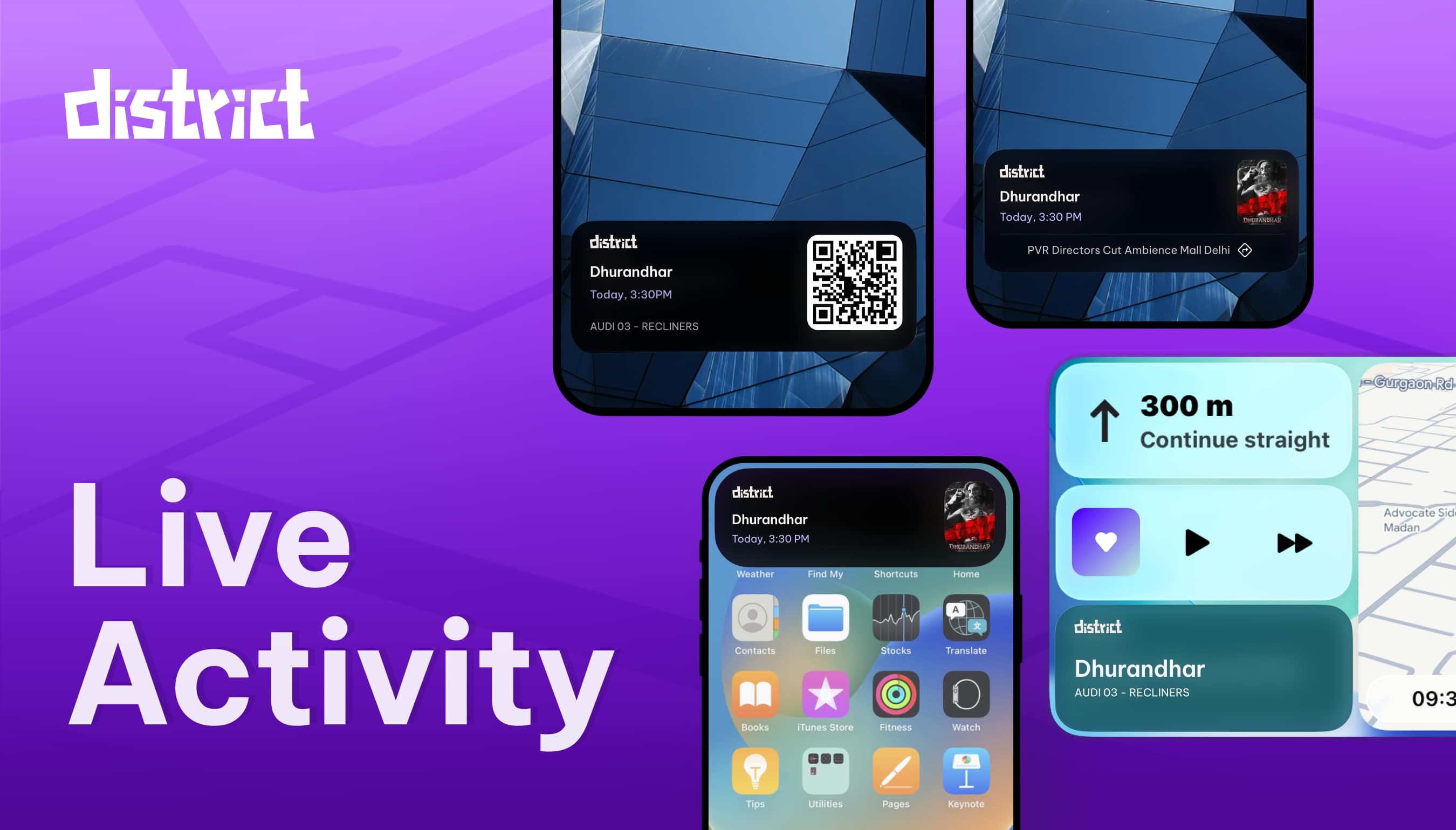
Apple's Live Activities opened the door to glanceable, real-time experiences on the iPhone's Lock Screen and Dynamic Island. With iOS 17.2, Apple introduced PushToStartToken, allowing servers to launch a Live Activity even when the app isn't running. This guide covers three key implementation areas:
- Integrating Live Activities via Push To Start channel.
- Loading dynamic images inside Live Activities.
Integrate Push-To-Start Live Activity
What is PushToStartToken?
Introduced in iOS 17.2, PushToStartToken allows your backend server to launch a Live Activity without any user interaction, and even if the app is completely terminated.
- Kick off Live Activities from push notifications
- Works even if the app is terminated, No need for the app to be running to show a live ETA.
- Enables server-driven UX for delivery or booking apps
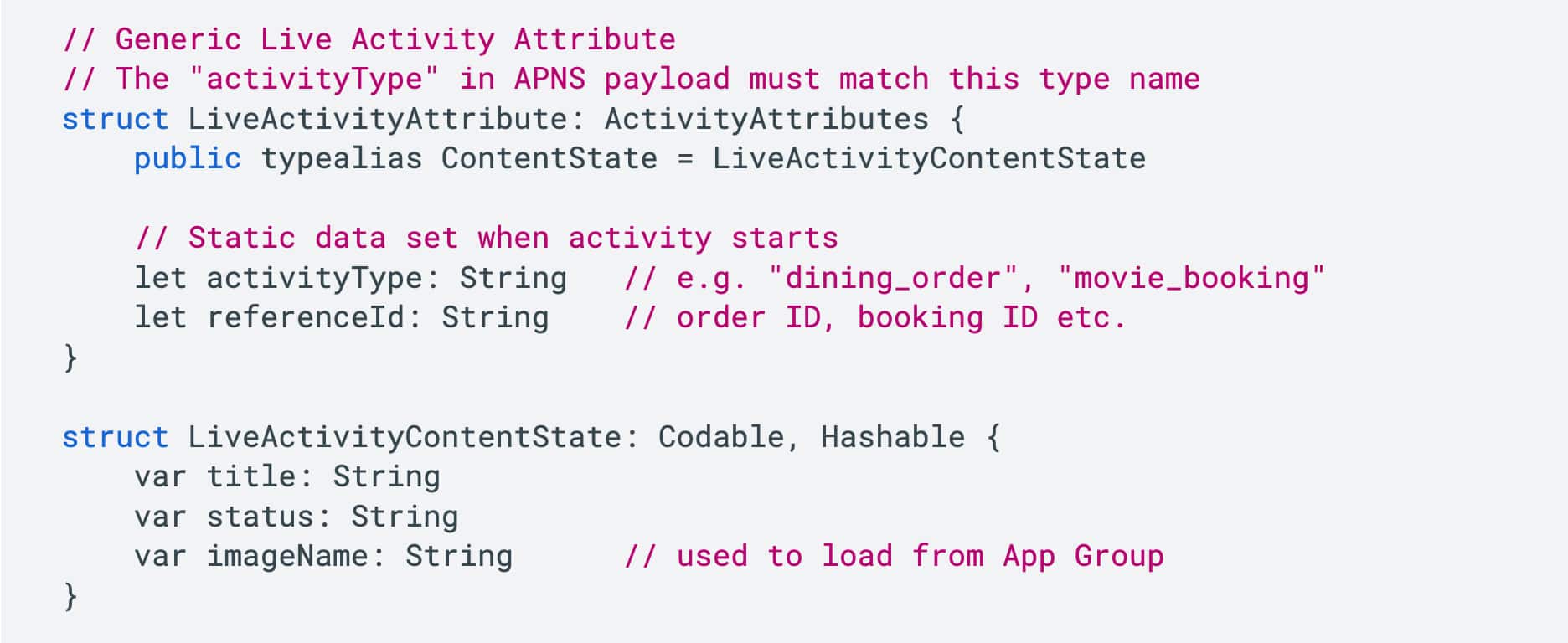
Step 1: Define Your Live Activity Attribute
Each Live Activity is tied to a specific ActivityAttributes type. The activityType field in your Apple Push Notifications (APNS) payload must match the attribute type registered on the device. This is how iOS selects the matching PushToStartToken when the push arrives.
Step 2: Listen for PushToStartToken Updates
As soon as your app launches, the app should start listening for PushToStartToken updates. iOS generates this token with respect to AttributeType, So if your intent is to use multiple live activities make sure the app captures respective token updates with respect to Attribute Type.
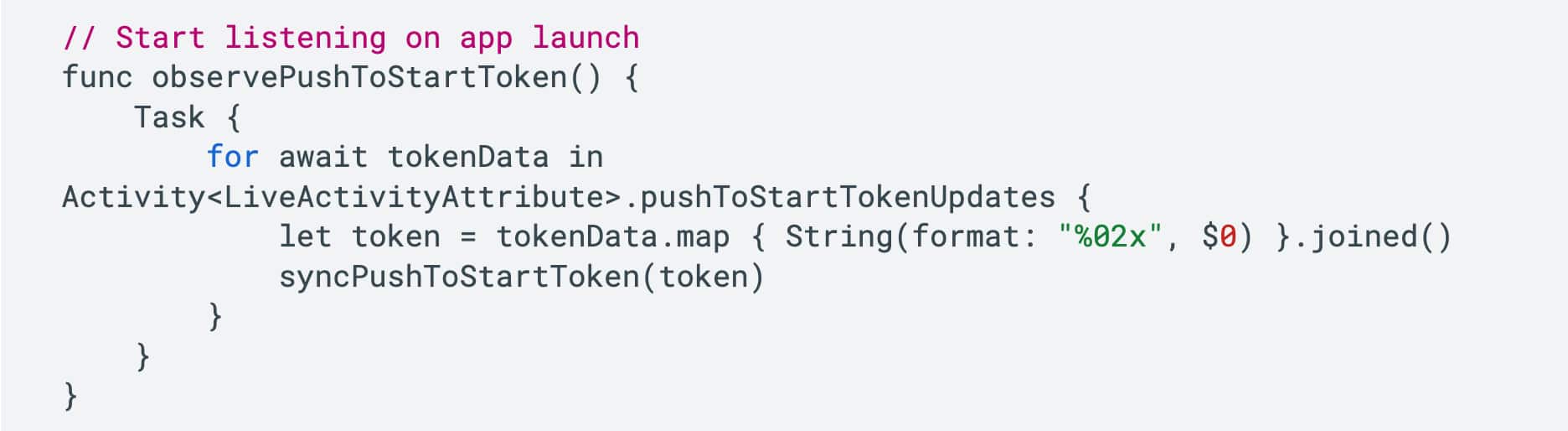 Call observePushToStartToken() inside application(_:didFinishLaunchingWithOptions or your app's SceneDelegate so it runs on every launch.
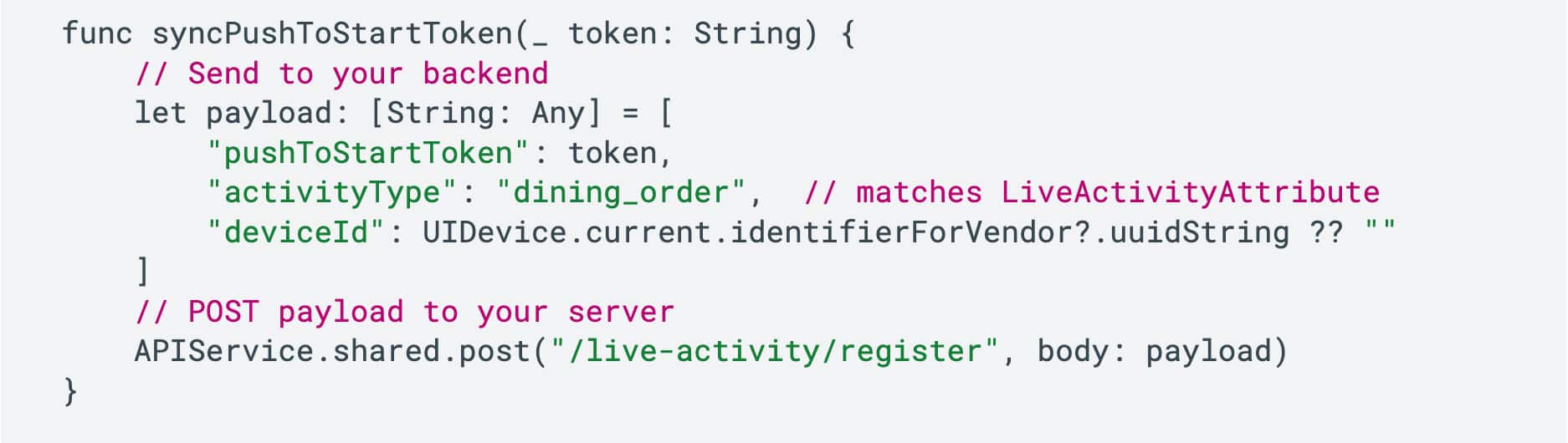
Step 3: Sync Token to Your Server
When a new token is received, send it to your backend along with the activityType so the server knows which Live Activity this token can trigger.
Step 4: Server Triggers Live Activity via APNS
Once your server has stored the PushToStartToken, it can trigger a push notification at any time, even when the app is terminated, to launch the Live Activity. The activityType in the payload must match the attribute type registered from the iOS device.
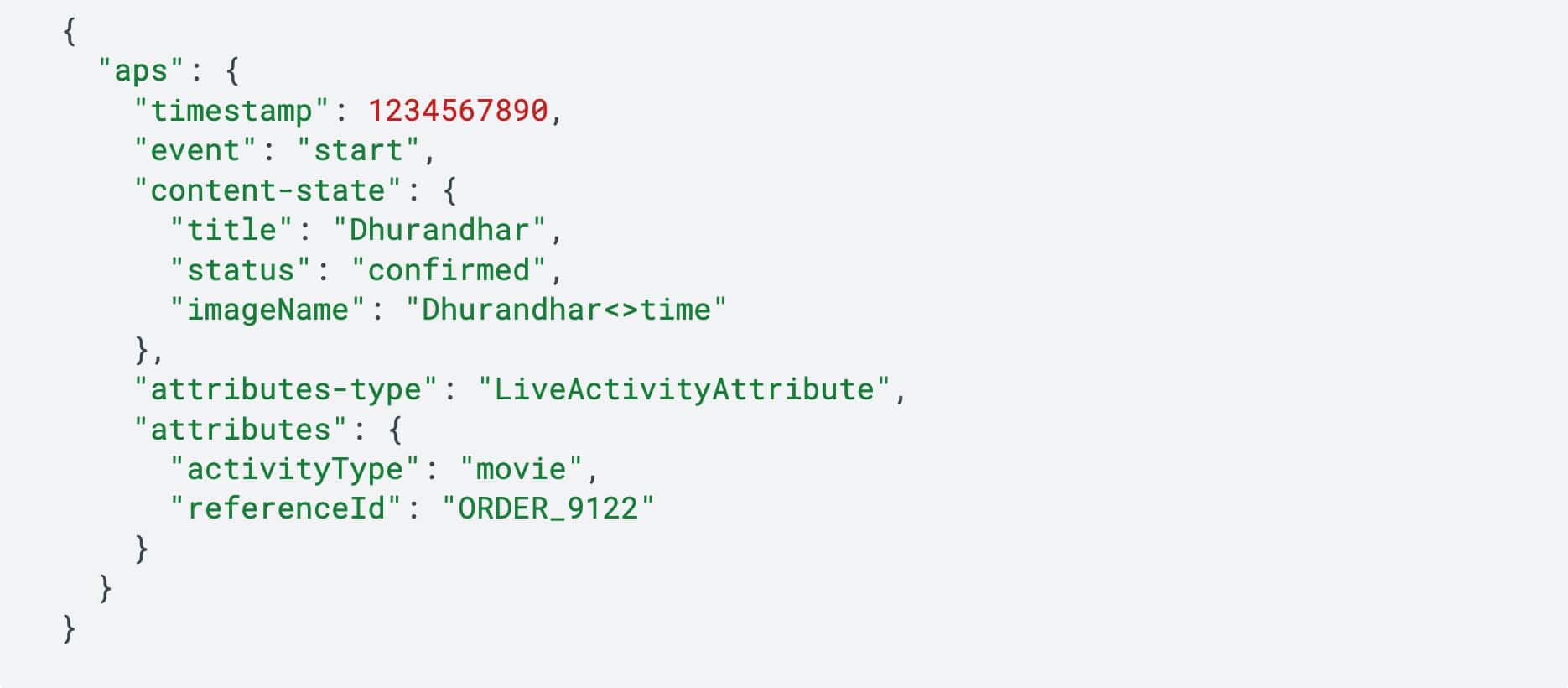 Send this APNS payload to the PushToStartToken (not a regular device push token) using your APNs provider with the apns-push-type: liveactivity header.
⚠️ attributes-type must exactly match your Swift struct name (LiveActivityAttribute). If it doesn't match, iOS will not start the Live Activity.
Send this APNS payload to the PushToStartToken (not a regular device push token) using your APNs provider with the apns-push-type: liveactivity header.
⚠️ attributes-type must exactly match your Swift struct name (LiveActivityAttribute). If it doesn't match, iOS will not start the Live Activity.
Loading Dynamic Images
The Problem with Remote Images
Live Activities use SwiftUI views running in a limited sandbox. This means:
- You cannot fetch remote images (AsyncImage, URLImage, etc. do not work)
- Only images which are available inside app bundle can be rendered
- There is no time to download images if the app is not running
⚠️ This is a significant limitation for personalized, image-rich experiences.
The Solution: App Group + File System
The approach is to pre-load images and store them in a shared container accessible by both the main app and the Live Activity extension.
- Enable App Groups in both your main app and widget extension targets.
- Download images from the app or a push-triggered background task.
- Save them to the App Group's shared folder on disk.
- In the widget, load the image using UIImage(contentsOfFile)
Step 1: Save Image to App Group
Before a Live Activity can display an image, the image must be saved to a shared App Group container, a sandboxed storage space accessible by both the main app and its extensions (including Live Activities and widgets).
This is necessary because Live Activities run in a separate process outside the main app's sandbox, meaning they cannot directly access the main app's local storage or cache.
By writing the image to the App Group's shared container, we create a common location both processes can read from.
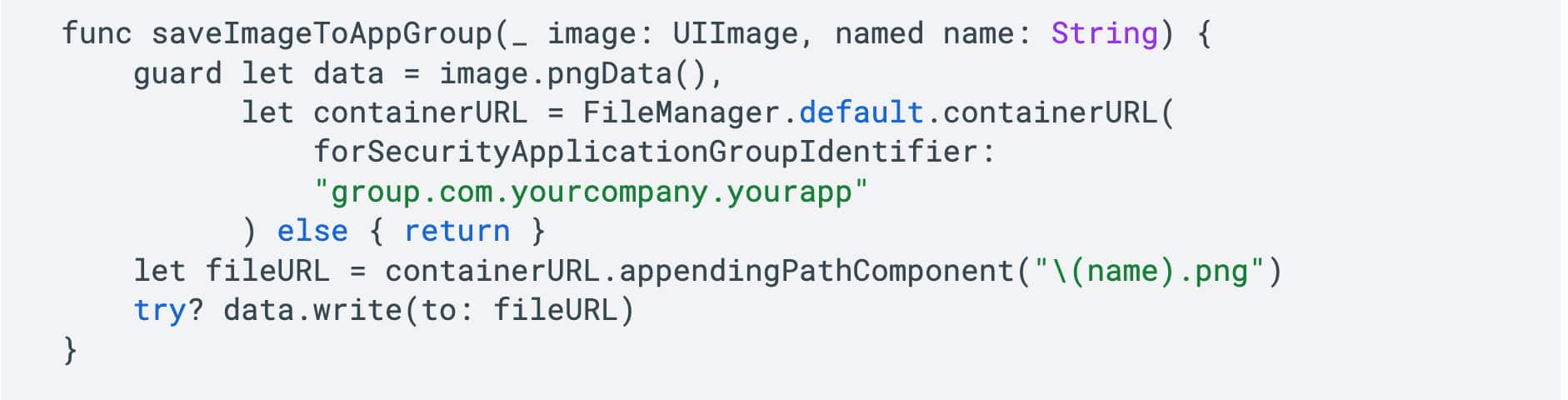
Step 2: Load Image in Live Activity
Once the image is saved to the App Group container, the Live Activity reads it directly from the shared path at render time. Live Activity uses the file URL passed through its ContentState to locate and load the image from the shared container using FileManager.
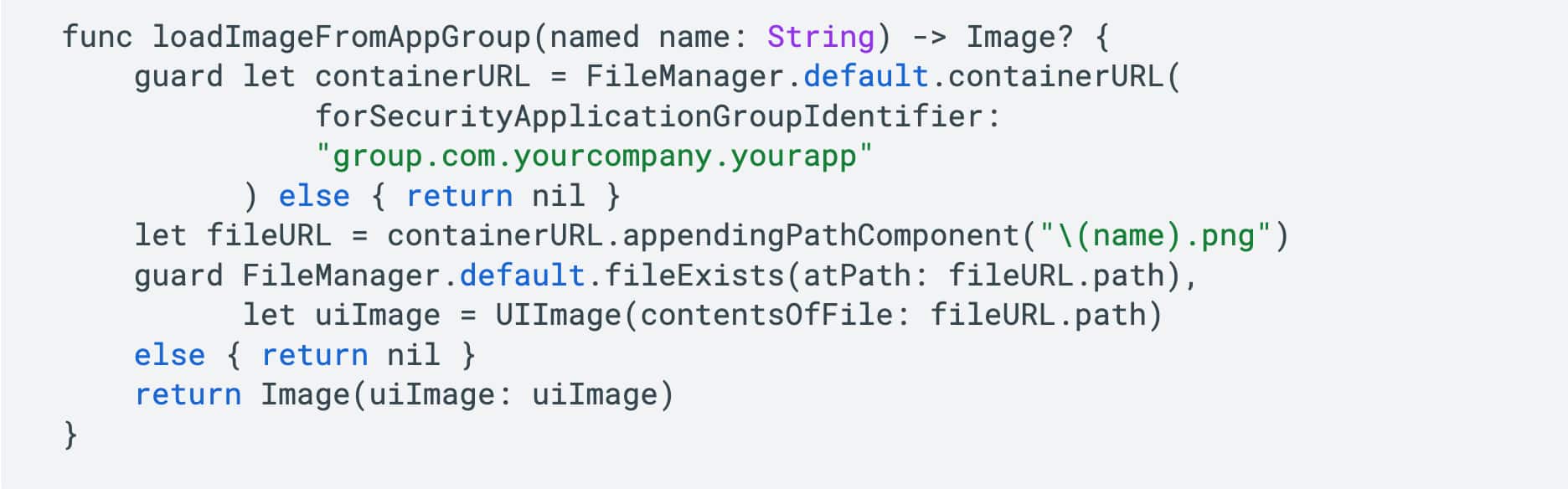
Step 3: Use in Live Activity UI
Since Live Activities are built with SwiftUI and run in a constrained widget environment, standard async image loading (like AsyncImage) is not supported. Instead, the image loaded from the App Group in Step 2 is passed directly into the SwiftUI view as an Image view for display.

Handling Storage Bloat
Saving dynamic images to disk repeatedly without cleanup will bloat the app's storage. Every new Live Activity that stores a unique image adds to total disk usage, and this compounds over time.
❌ Without cleanup, repeated image saved will significantly increase app storage usage over time.
Solution: Add expiration metadata to each saved asset and run a cleanup routine on every app launch. Files older than 24 hours are automatically deleted.
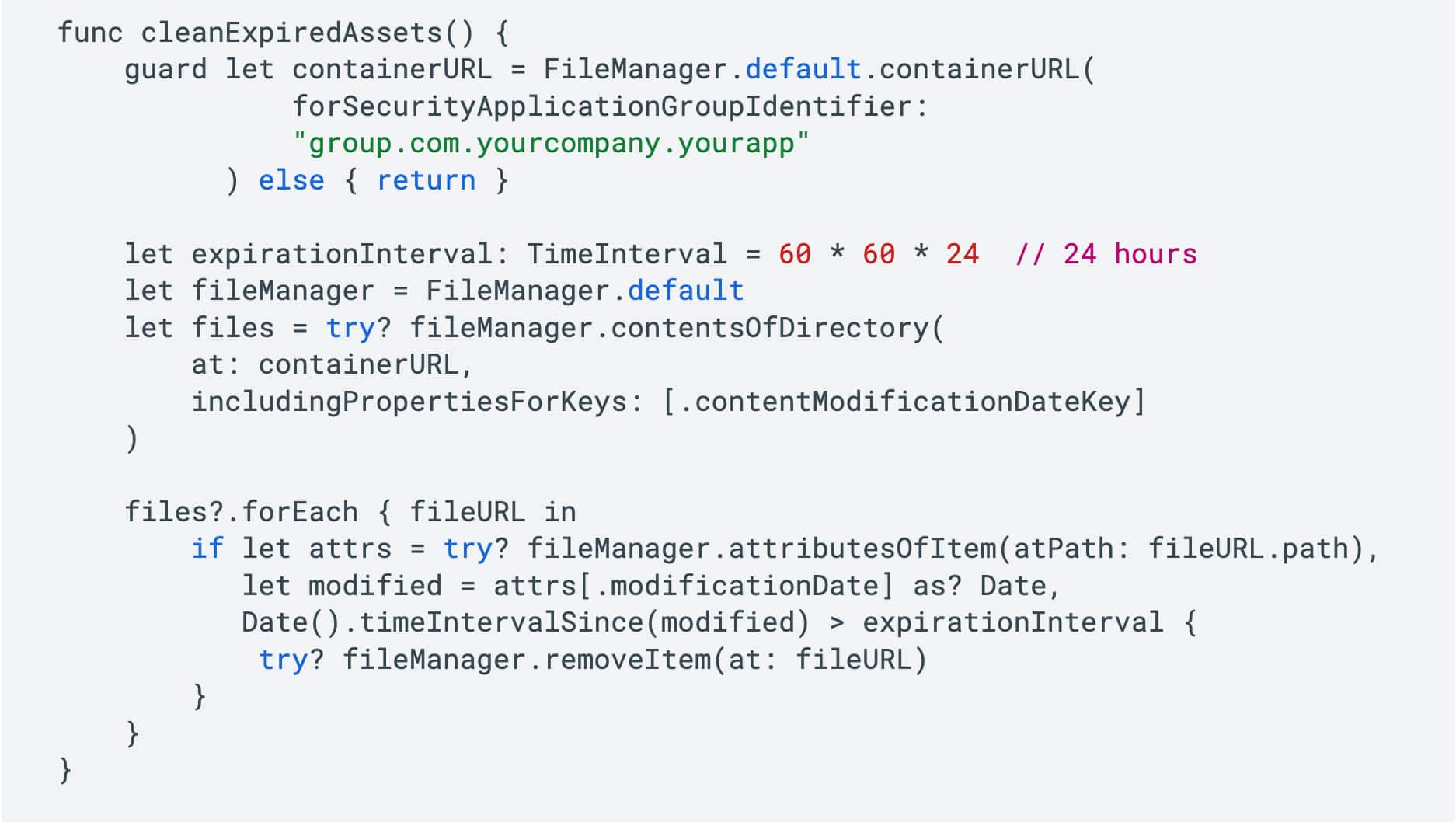 Call cleanExpiredAssets() inside application(_:didFinishLaunchingWithOptions: ) on every app launch.
✅ Result: No bloated disk usage. Smart, self-managing image storage that scales cleanly.
Call cleanExpiredAssets() inside application(_:didFinishLaunchingWithOptions: ) on every app launch.
✅ Result: No bloated disk usage. Smart, self-managing image storage that scales cleanly.
Summary
With PushToStartToken, Apple gave developers the ability to create truly server-driven Live Activities. Combined with the App Group image strategy, you can build dynamic, image-rich Live Activities that work even when the app is terminated.
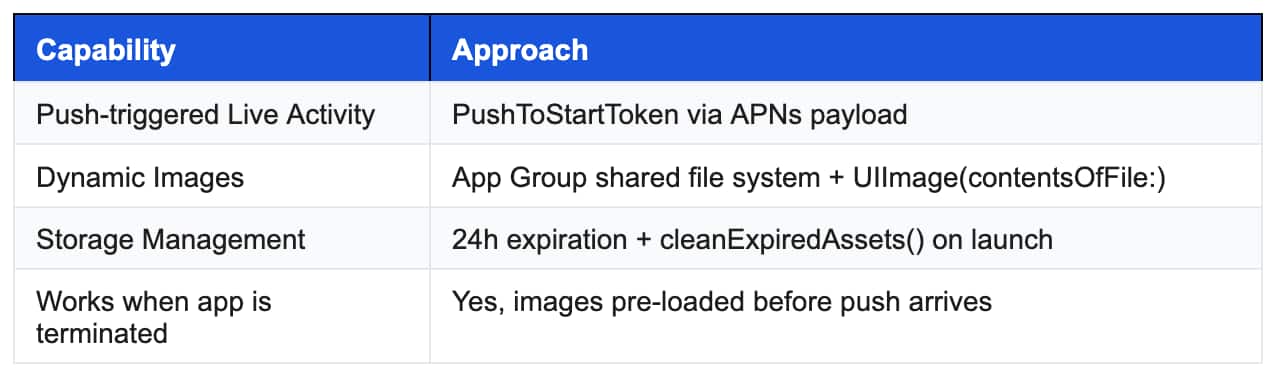 This approach is implemented in the District iOS App for dining table reservations and movie bookings.
Team - Shubham Gupta, Nilotpal Pramanik, Gaurav Kumar, Rohit Garga, Saksham Choudhary, Ankit Jha, Swati Kandhari, Vivek Majhi