
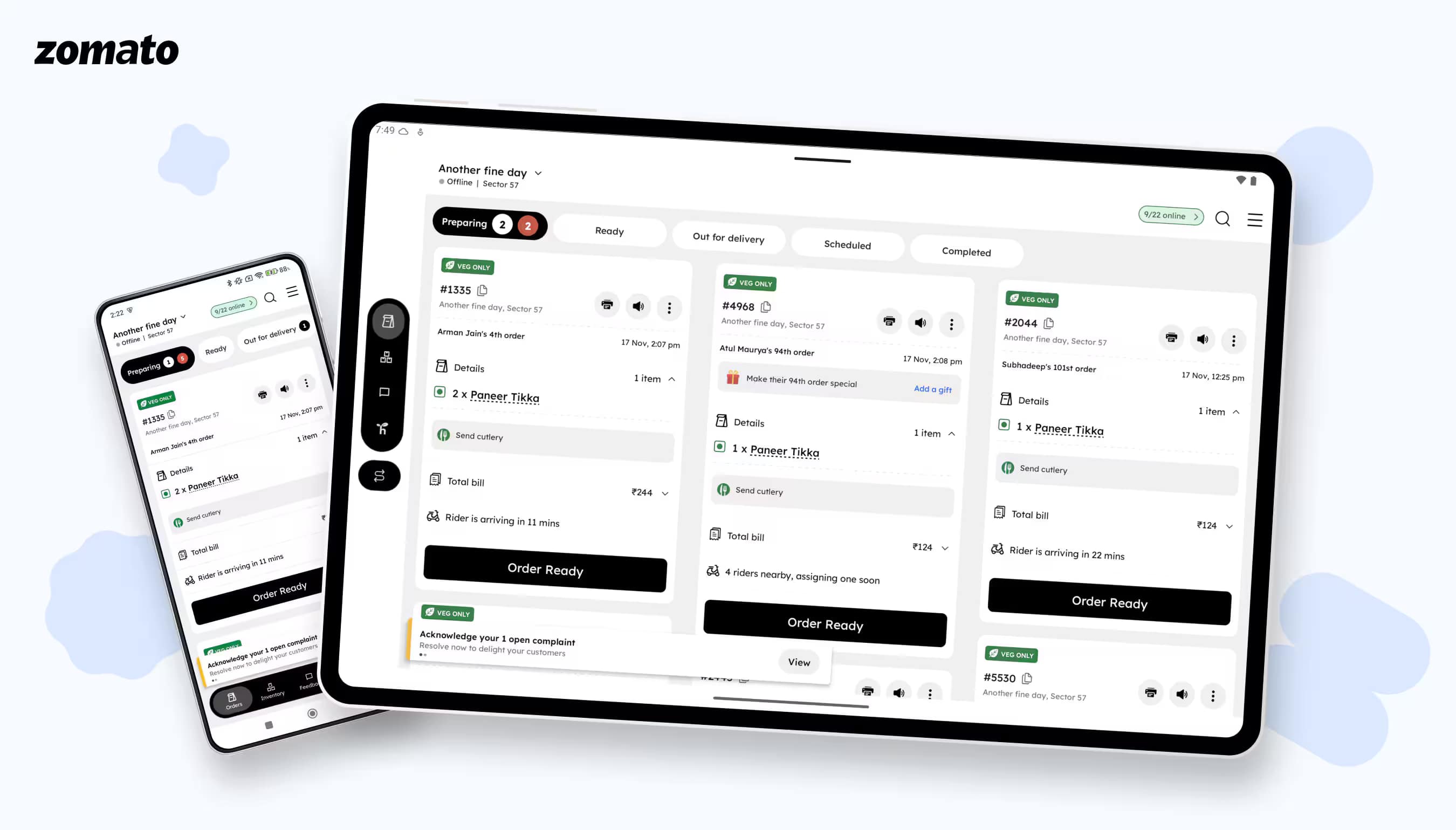
Beyond the phone: Zomato restaurant partner app on large screens
Don't Fear the Rotation: Building State for a Truly Adaptive Android App
Ask any seasoned Android developer what they fear, and 'configuration changes' will be high on the list. A simple screen rotation, that seemingly innocent event that tears down and recreates your entire UI, can wipe out state, break user flows, and turn a simple screen into a complex mess.
Many apps, including some widely used ones, have historically been designed primarily for a portrait orientation. The common ‘easy fix’ was simple: just lock the orientation to portrait in the AndroidManifest file.
That single line of code, android:screenOrientation="portrait", was a fragile peace treaty with the OS. But this ’easy button’ was accumulating massive technical debt, not just for orientation change, but for any adaptive layout.
Now, imagine solving that not just for rotation, but for folding, unfolding, and resizing on the fly. We just did this for our Restaurant Partner app. It was a massive architectural challenge, but it forced us to fundamentally rethink how we handle state and build our UIs. Here’s how we tackled it:
The real challenge: state, state, and more state
At first glance, this looks like a layout problem. It's not. It's a state management problem. In Android, any configuration change (like a rotation or resizing) destroys and recreates the Activity. Our app wasn’t designed for this. We had state everywhere—in ViewModels, in singleton managers, and in the UI itself. A simple rotation meant:
- Scroll positions were lost.
- Text entered in a form would vanish.
- A dialog would disappear.
- The app would ‘forget’ which item in a list was selected.
Our solution: A multi-part architectural fix
The overall strategy was divided into two main parts. First, we focused on stabilizing the UI state and data to ensure it could survive configuration changes and app restarts. Once the data was safely managed, the second part was to build the adaptive UI solutions.
Part 1: Managing the data
Retaining data across configuration changes
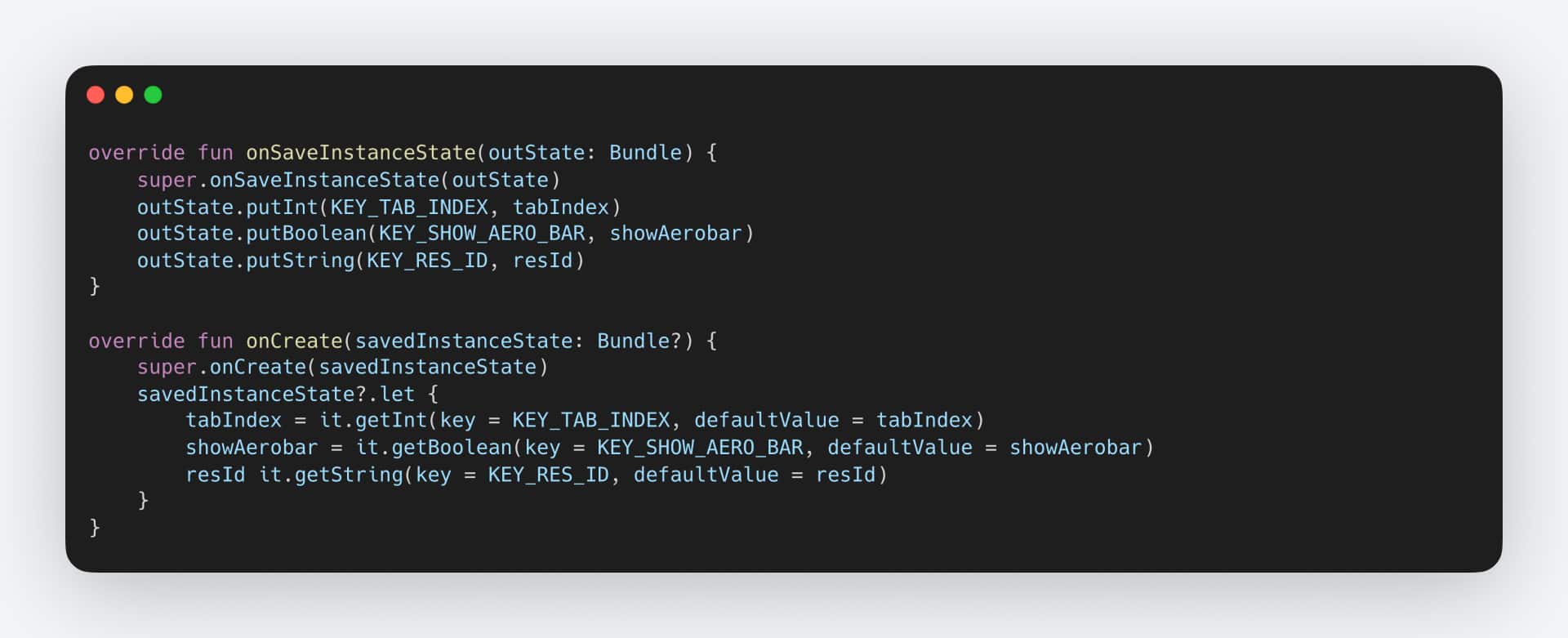
In our first step, we moved all transient UI states into ViewModels and used SavedStateHandle to ensure it survived process death and configuration changes. This meant refactoring our legacy ’snippet’ structure to draw a clean line: The View only observes state (no data is stored in view as a variable), and the ViewModel owns it.
In some of our legacy parts of the app (like certain 'abstract base fragments'), a ViewModel is not easily integrated. So, in those special cases, we use the traditional onSaveInstanceState() method, to save small pieces of information.
Fetching data from the server
We intuitively start fetching data from onCreate() in our activities and fragments.
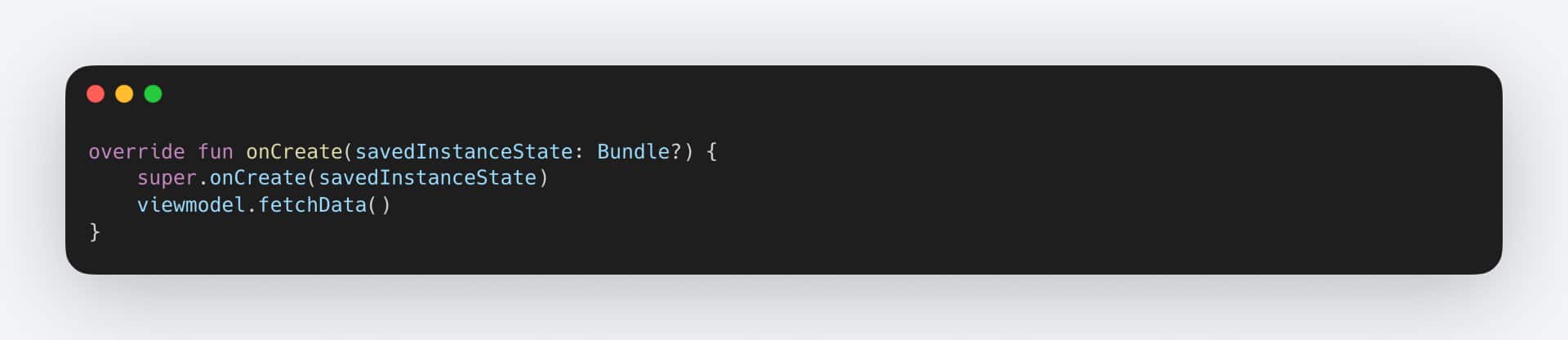 The problem: Configuration changes (such as rotation or screen-size adjustments) cause activities, fragments, and bottom sheets to be recreated. As a result, onCreate runs again, leading to unwanted API calls on every configuration change.
Fortunately, we can solve this by fetching the data in the ViewModel’s initialization block. This keeps the data-fetching logic out of the UI layer and removes any dependency on the UI lifecycle.
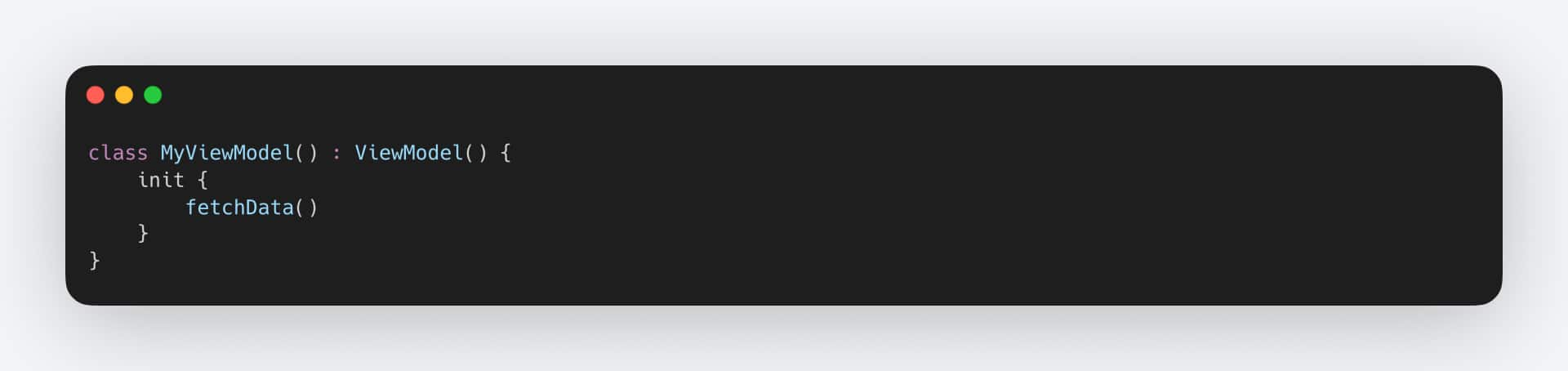 "What if I need to pass parameters to the API?"
We can use savedStateHandle in that case. For example, If we have a fragment that shows a user profile, that takes an user ID as an argument. We can pass the parameter in the fragment argument like this:
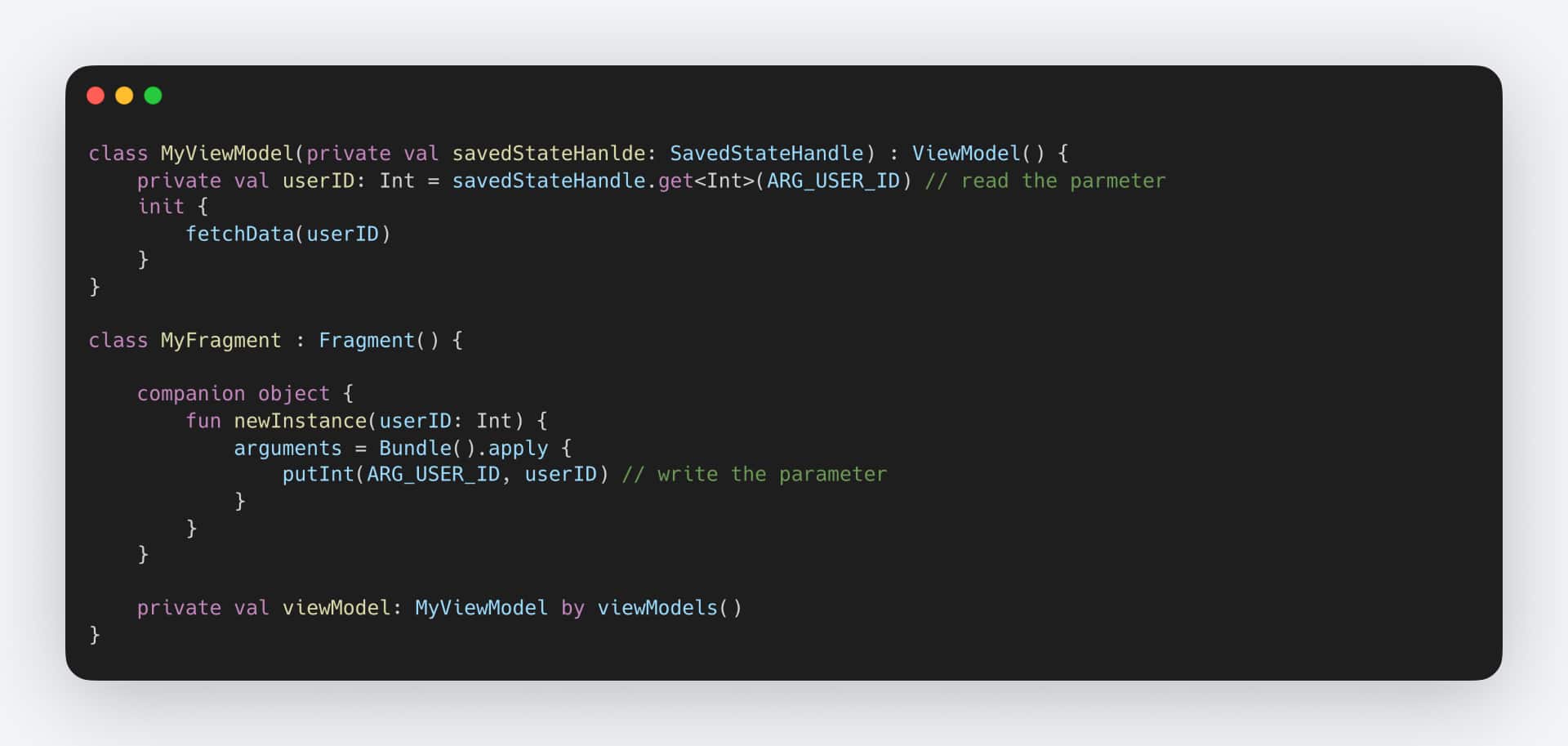 Android automatically handles passing arguments to the SavedStateHandle. However, it is important to remember that SavedStateHandle is intended for storing only minimal data and has a size limit.
"What if I use a custom ViewModel factory?"
We have the CreationExtras.createSavedStateHandle() method exactly for this purpose. The CreationExtras passed into your factory already includes the Fragment’s arguments and saved-state data, so calling createSavedStateHandle() immediately produces a fully populated SavedStateHandle.
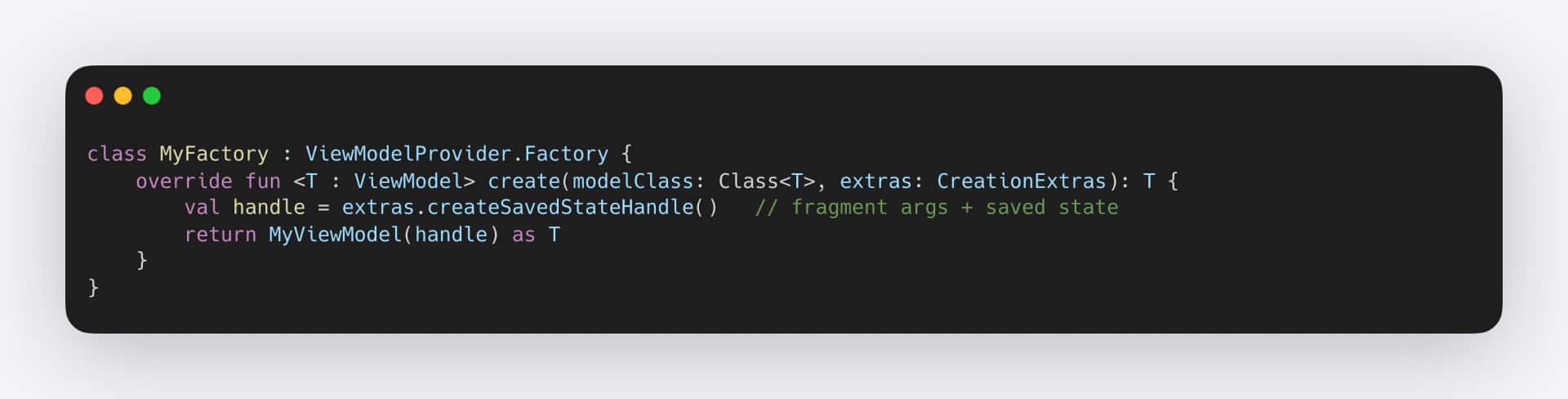 With these in place, the UI state is now secured, and we have been able to implement the user interfaces.
Part 2: Implementing the UI layer
Data handling was just the warm-up; perfecting the layout took most of the effort. Despite leveraging typical Android-provided capabilities, we encountered further challenges.
Conditional layout inflation for adaptive UIs
We leveraged Android's capability to conditionally inflate different views, applying this approach to major flows. This allows us to provide tailored support for key functionalities on larger screens, specifically in landscape orientation and on tablets.
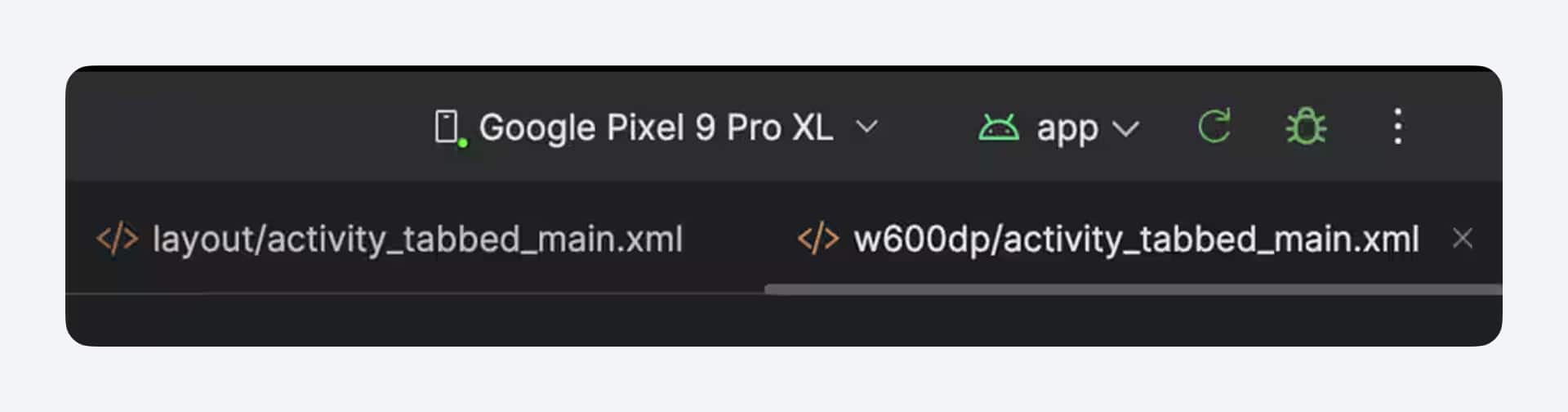
Implementing the canonical layouts
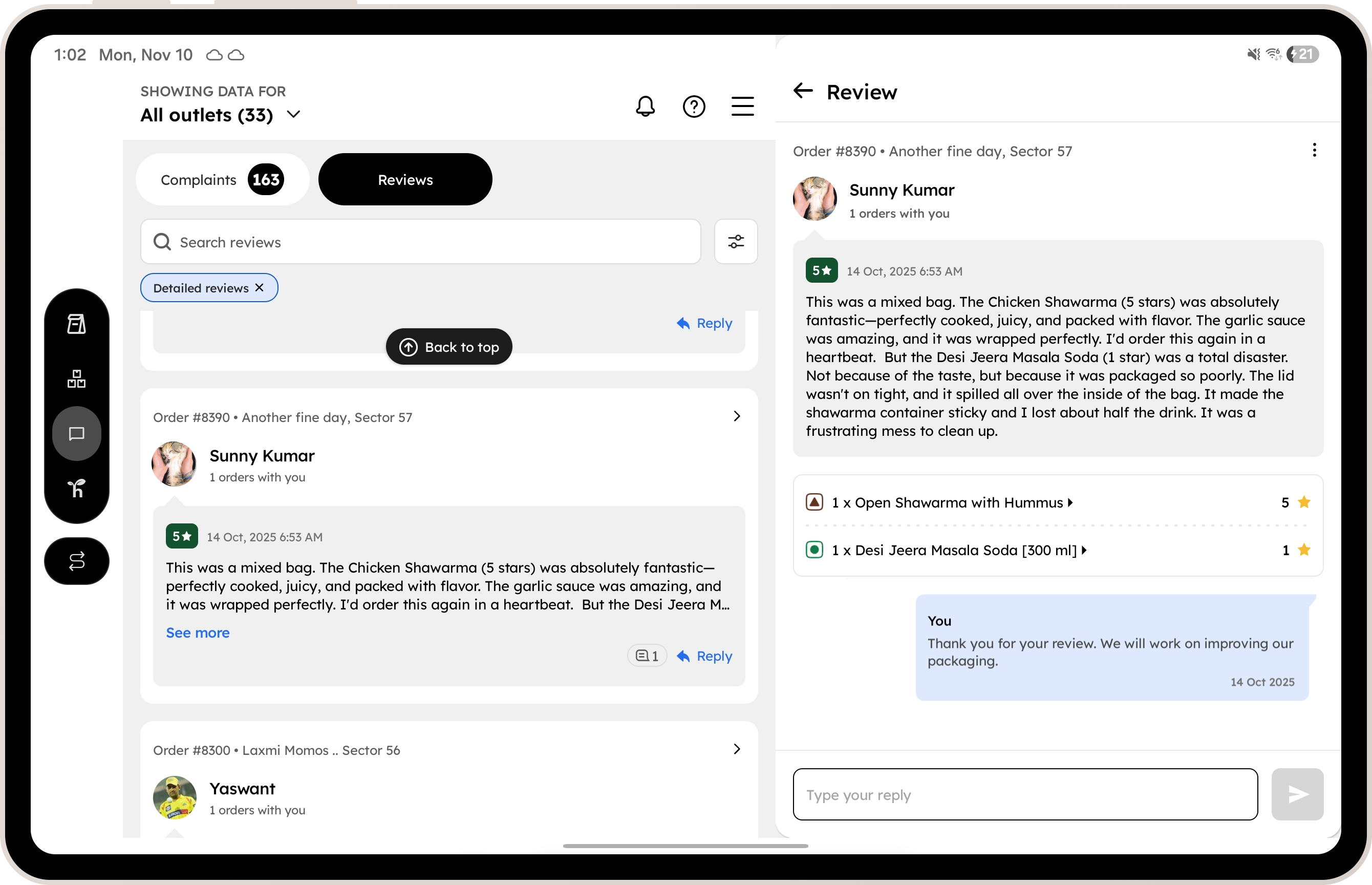
- For 'List-Detail' patterns: We used SlidingPaneLayout. It's robust, well-supported, and handles all the complex logic of deciding when to show one pane versus two. We created a reusable wrapper to make it easy to adopt across the app.
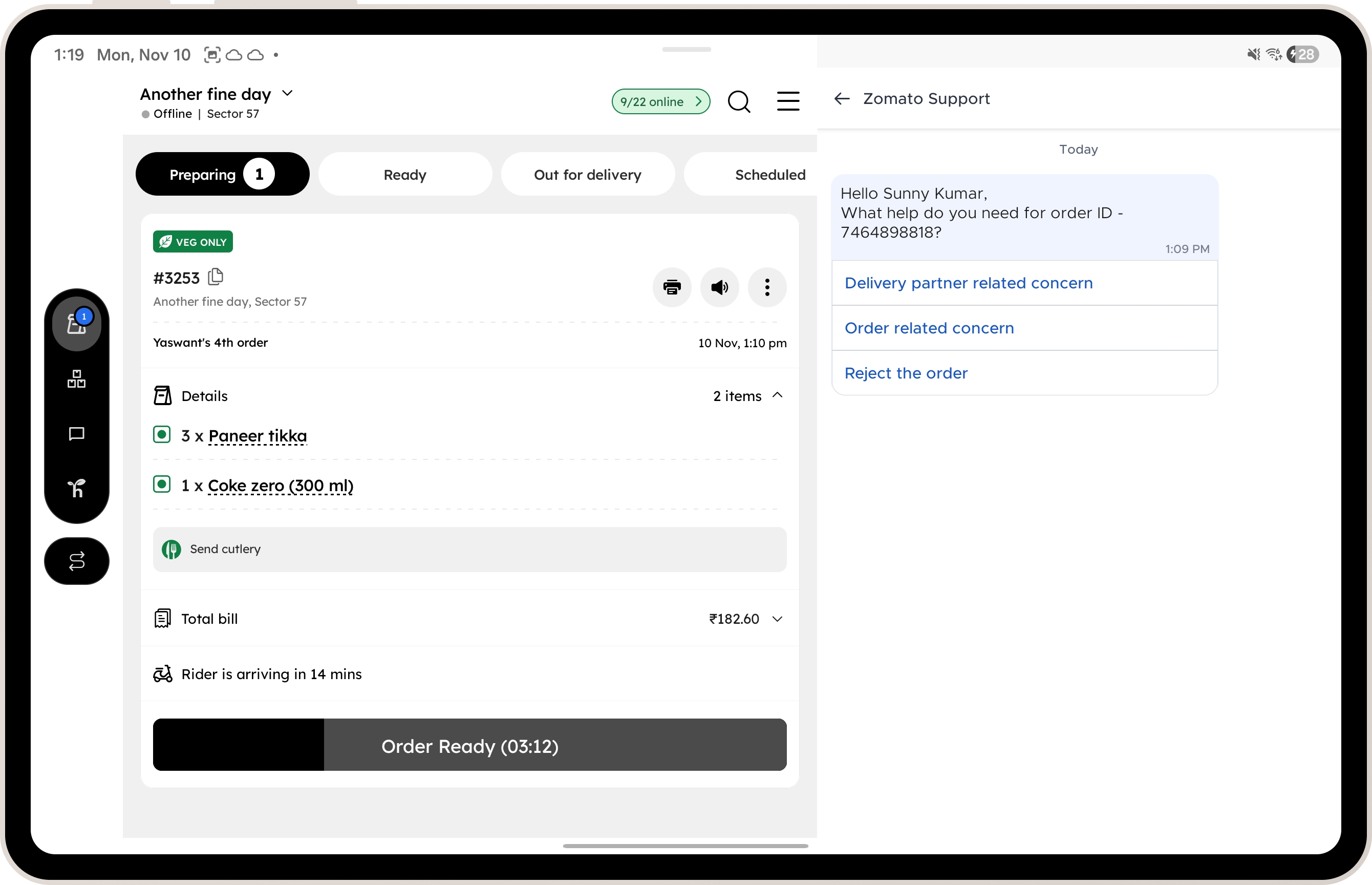
- For quick action pages that open in activity: EmbeddedActivity was the clear winner. It lets us treat two entirely different user flows (built as separate Activities) as a single, cohesive UI on a tablet. This was crucial for our Chat library, which was already implemented as a standalone Activity.
Making hard-coded dimensions adaptive
A significant issue was that the dimensions of several views were hard-coded based on specific design requirements (for example, displaying exactly 2.5 cards or one banner at a time). This approach lacked adaptability. For example, a single, large banner might dominate the screen even on a tablet, wasting valuable space. Consequently, we needed to make these elements adaptive to the current screen size.
Fixing landscape orientation on smaller screens
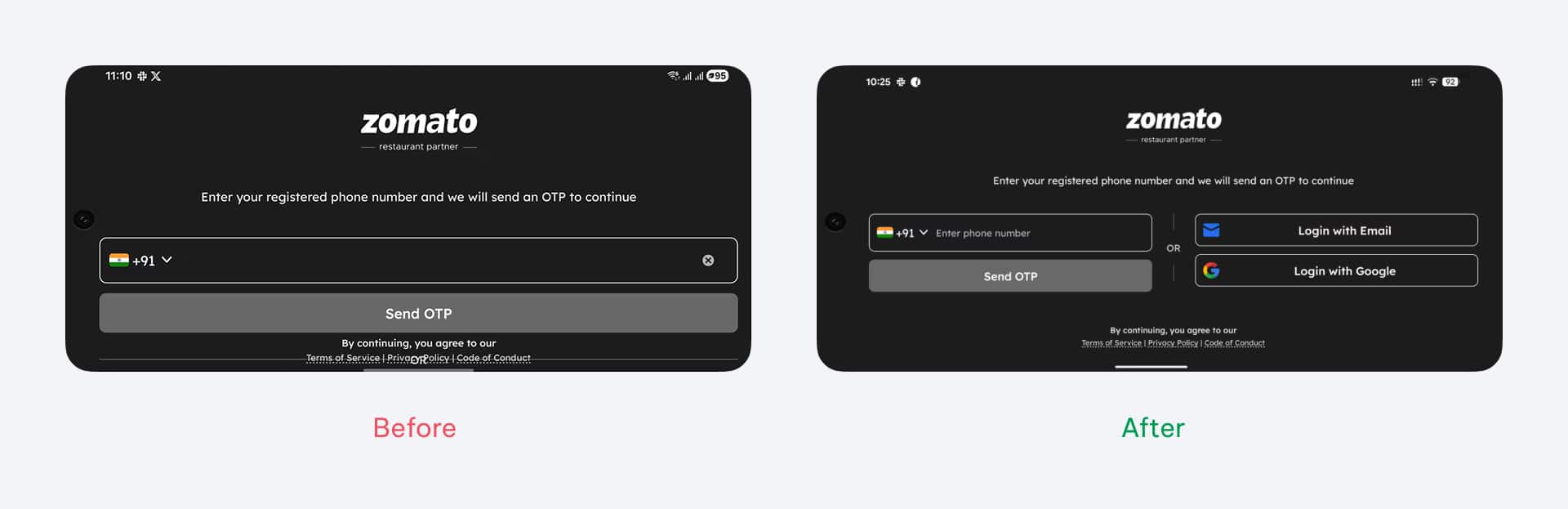
Addressing issues with landscape orientation on smaller phone screens was necessary. We found that some screens didn't scroll due to limited vertical space and missing scrollview, and others had broken user experiences. Our solution involved identifying these problematic views and either fixing their functionality or designing new views specifically for smaller heights.
Building for the future
Our architecture is now ready for whatever comes next. Whether it's Android 17's strict requirements, new foldable form factors, or even desktop-class environments like DeX, we are no longer reacting to change; we are building for it. This adaptive framework is now the foundation for our next generation of apps. Read about the upcoming changes here.
If you're an Android developer who wants to build for the future instead of just patching the past, we're hiring. Send us your resume on Linkedin and include your answer to this one question:
What's one thing you’ve worked on in Android (or tech in general) that you’re proud of or found amazing?
This blog was authored by Sunny. The work described was a collective effort by Sunny, Vibhav, Nitin, Avneet, Sahil, Yaswant and was done under the guidance of Samarth.